Guides
Qeno AI: The Easiest Way to Create UGC Video Ads Without a Camera, Actors, or a Studio
Table of Contents
- 01What Is Qeno AI?
- 02Why Create UGC Video Ads Without Traditional Production?
- 03How to Create UGC Video Ads Using Qeno AI
- 04Step 1: Add Your Product
- 05Step 2: Describe the UGC Ad
- 06Step 3: Choose Generation Settings
- 07Step 4: Let the AI Director Refine Your Idea
- 08Step 5: Review Your Video Prompt
- 09Step 6: Generate and Download
- 10Who Can Benefit from Qeno AI?
- 11Create UGC Video Ads Without the Hassle
- 12Frequently Asked Questions
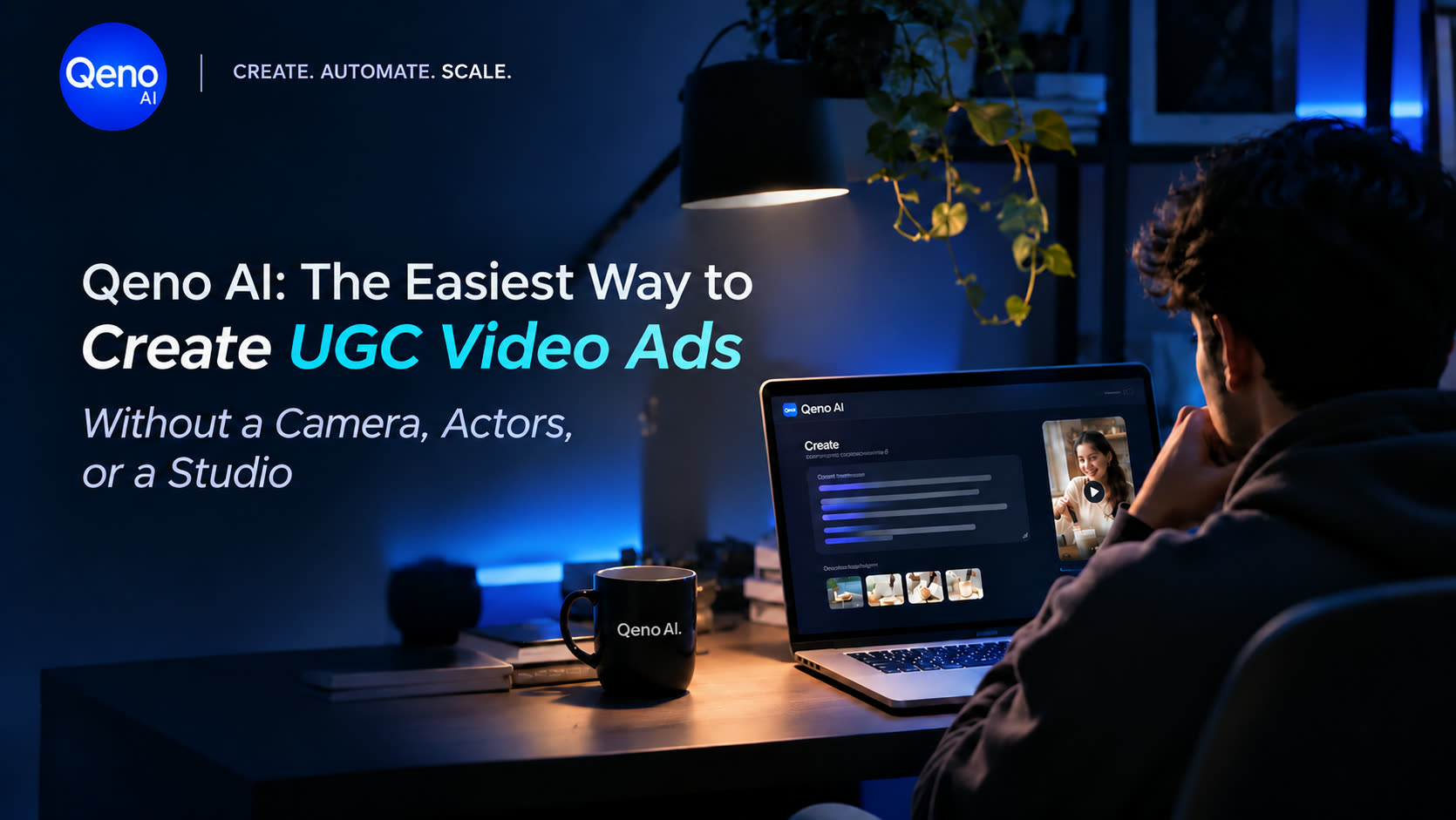
Creating UGC video ads used to involve quite a bit of coordination. Brands had to find creators, arrange product shoots, prepare scripts, set up cameras and manage production before they could even start testing an ad.
But what if you could create creator-style video ads without organising an entire production setup?
That's where AI-powered UGC creation comes in.
Qeno AI makes it easier for brands to turn product information and creative ideas into UGC-style video ads through an interactive AI-powered workflow. You provide the product details, describe the kind of ad you want, and let Qeno's AI Director help shape the video before generation.
No camera setup. No need to book actors. No studio required.
In this guide, we'll walk through how to create a UGC video ad using Qeno AI, from adding your product to downloading the final video.
What Is Qeno AI?
Qeno AI is an AI-powered platform designed to help brands create UGC-style video advertisements without relying on traditional video production.
Instead of arranging a shoot with a creator, you can start with your product information, provide a creative brief and work through Qeno's guided video creation process.
The platform brings together product information, AI creator selection, creative direction and video generation in one workflow.
This makes it useful for brands, marketers, e-commerce businesses and advertisers who want to create video ad content without managing a conventional production process.
Why Create UGC Video Ads Without Traditional Production?
UGC-style advertising works because it presents products in a relatable, creator-led format rather than making every advertisement feel like a traditional commercial.
However, producing this content repeatedly can be challenging. Traditional UGC production may involve:
- Finding and coordinating with suitable creators.
- Sending products for filming.
- Preparing scripts and creative briefs.
- Arranging cameras, lighting and recording spaces.
- Managing revisions and waiting for final videos.
For brands that want to experiment with different advertising ideas, these steps can slow down the creative process.
AI-powered UGC creation offers another approach. You can work with AI-generated creator-style videos and explore different creative directions without organising a physical shoot for every ad.
How to Create UGC Video Ads Using Qeno AI
Let's walk through the actual process using a sample product: FoamMate Mini Frother, a fictional portable milk frother.
Our goal is to create a casual, creator-style product demonstration that shows how someone can make café-style drinks at home.
Step 1: Add Your Product to Qeno AI
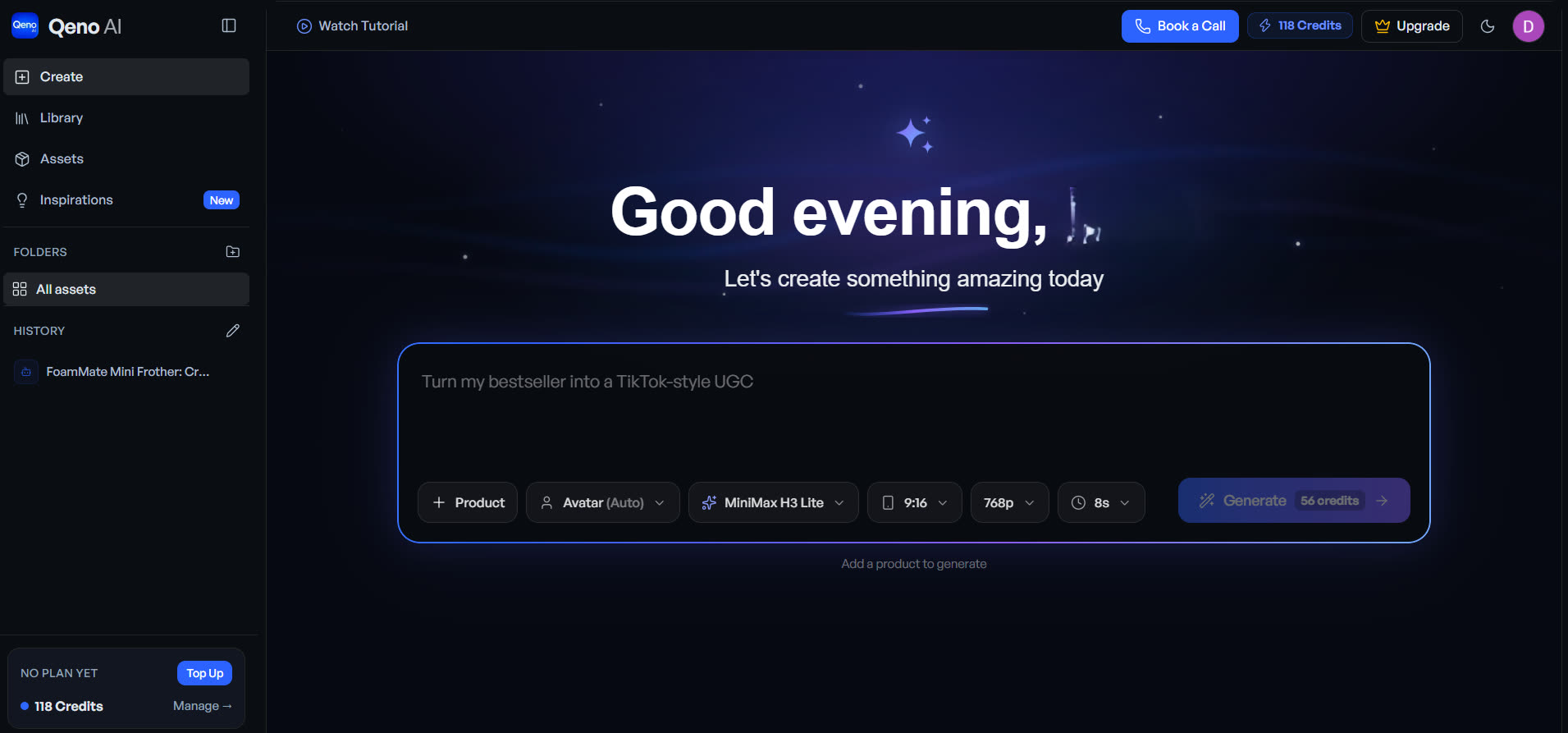
Start by opening the Create section in Qeno AI Studio.
You'll be asked how you want to add your product. There are two available options:
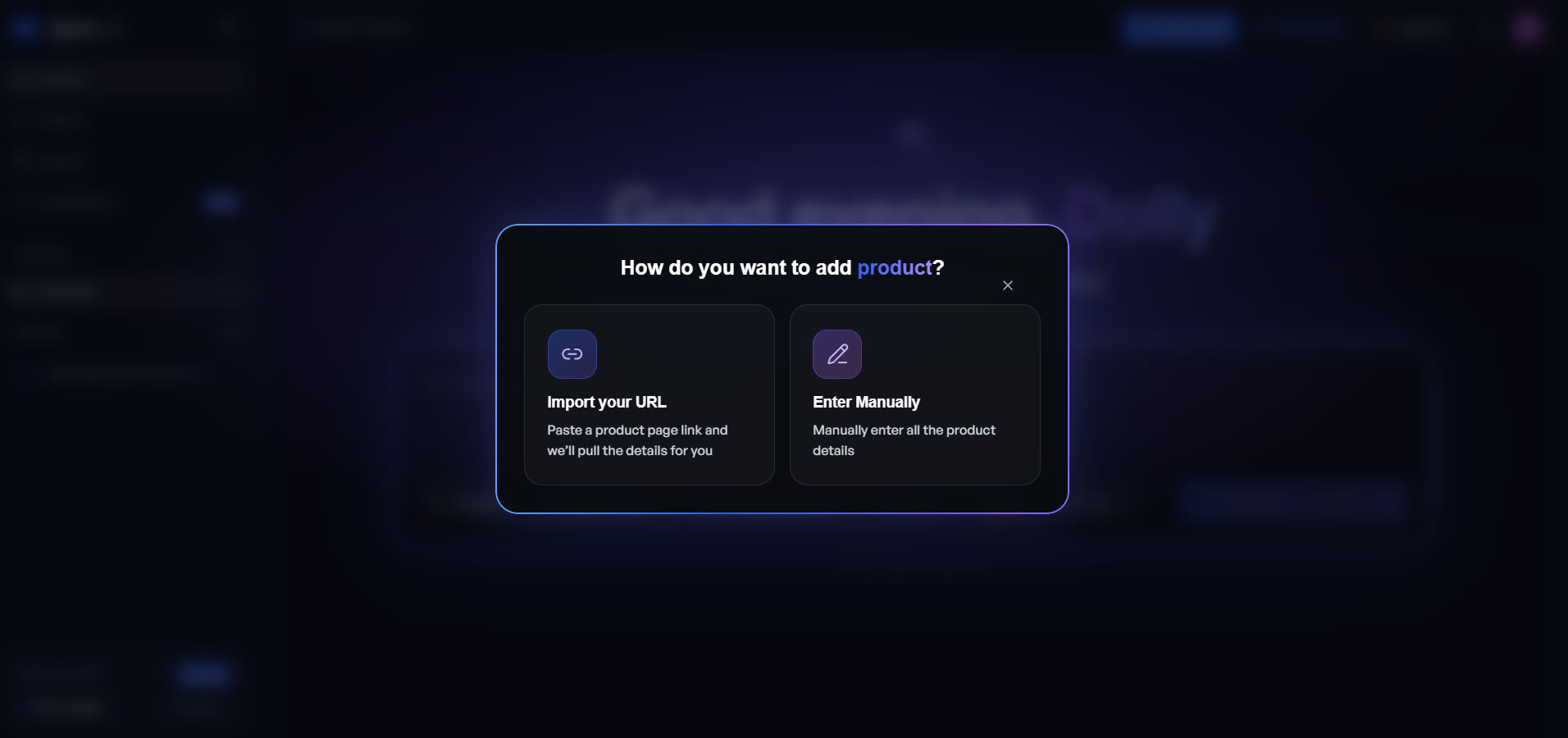
Option 1: Import Your Product URL
If your product is listed online, you can paste its product page link.
Qeno AI supports product links from platforms such as Amazon, eBay, Shopify and Walmart. The platform can extract product information from the link, helping you get started without manually entering every detail.
Option 2: Enter Product Details Manually
If you don't have a product URL, you can add the information yourself. The manual entry process asks for:
- Brand or product name.
- Product description.
- Product media, such as product images.
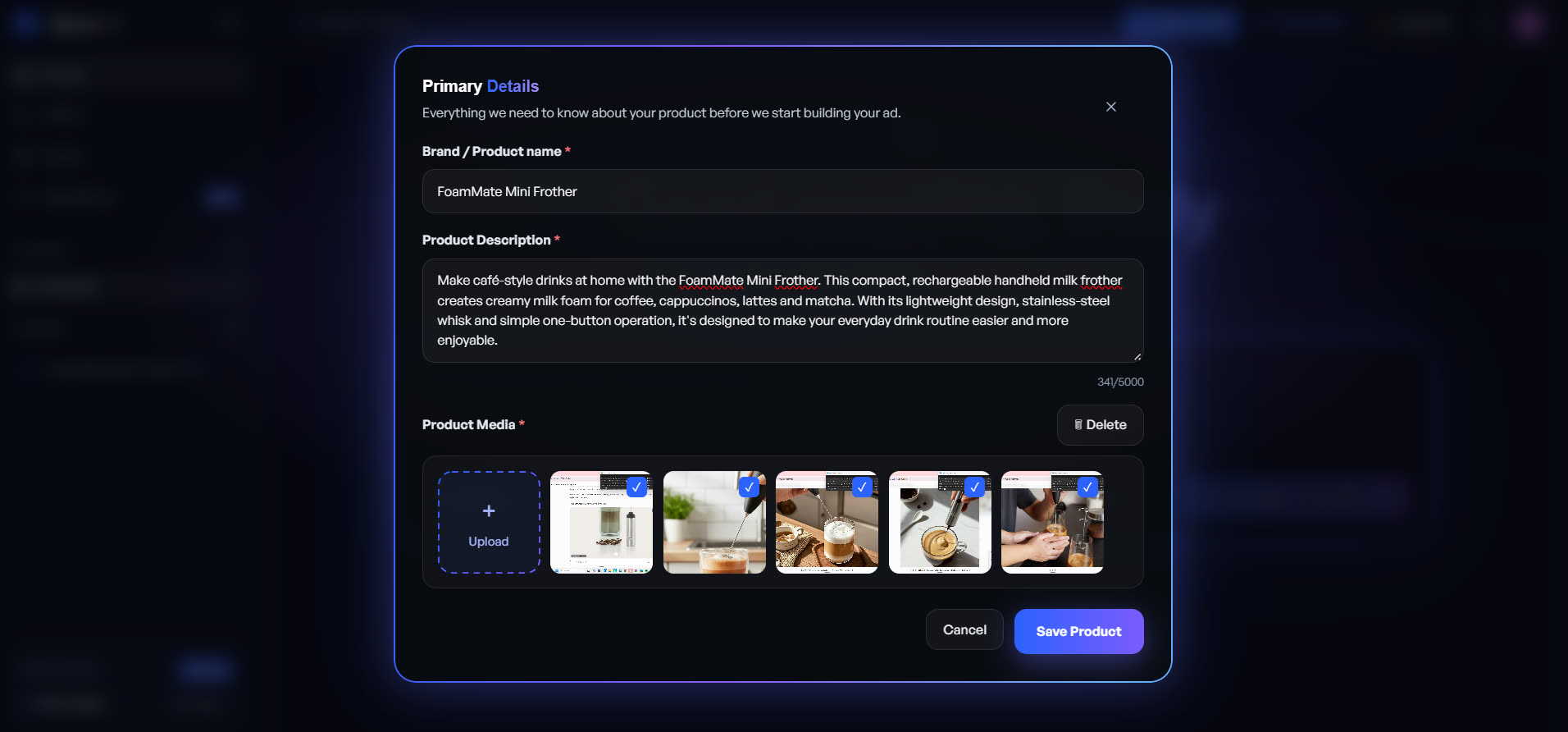
For our example, we'd enter FoamMate Mini Frother and describe its compact design, rechargeable functionality, stainless-steel whisk and use for preparing coffee, lattes and matcha.
Adding product images also helps establish what the product looks like before creating the advertisement.
Step 2: Describe the UGC Ad You Want to Create
Once your product is added, it's time to explain the kind of video you want. This is where your creative direction matters.
Rather than simply asking for a product video, describe how you want the advertisement to feel and what you want viewers to see. For our FoamMate example, the creative brief could look like this:
Creative direction: A casual creator-style product demonstration.
Opening hook: "Wait… I can make café-style coffee at home now?"
Video flow:
- The creator introduces the problem of making coffee at home without creamy foam.
- She introduces the FoamMate Mini Frother.
- She demonstrates how it froths milk.
- She shows the finished latte.
- She ends with a natural product recommendation.
Tone: Relatable, conversational and slightly enthusiastic. Not a polished television commercial.
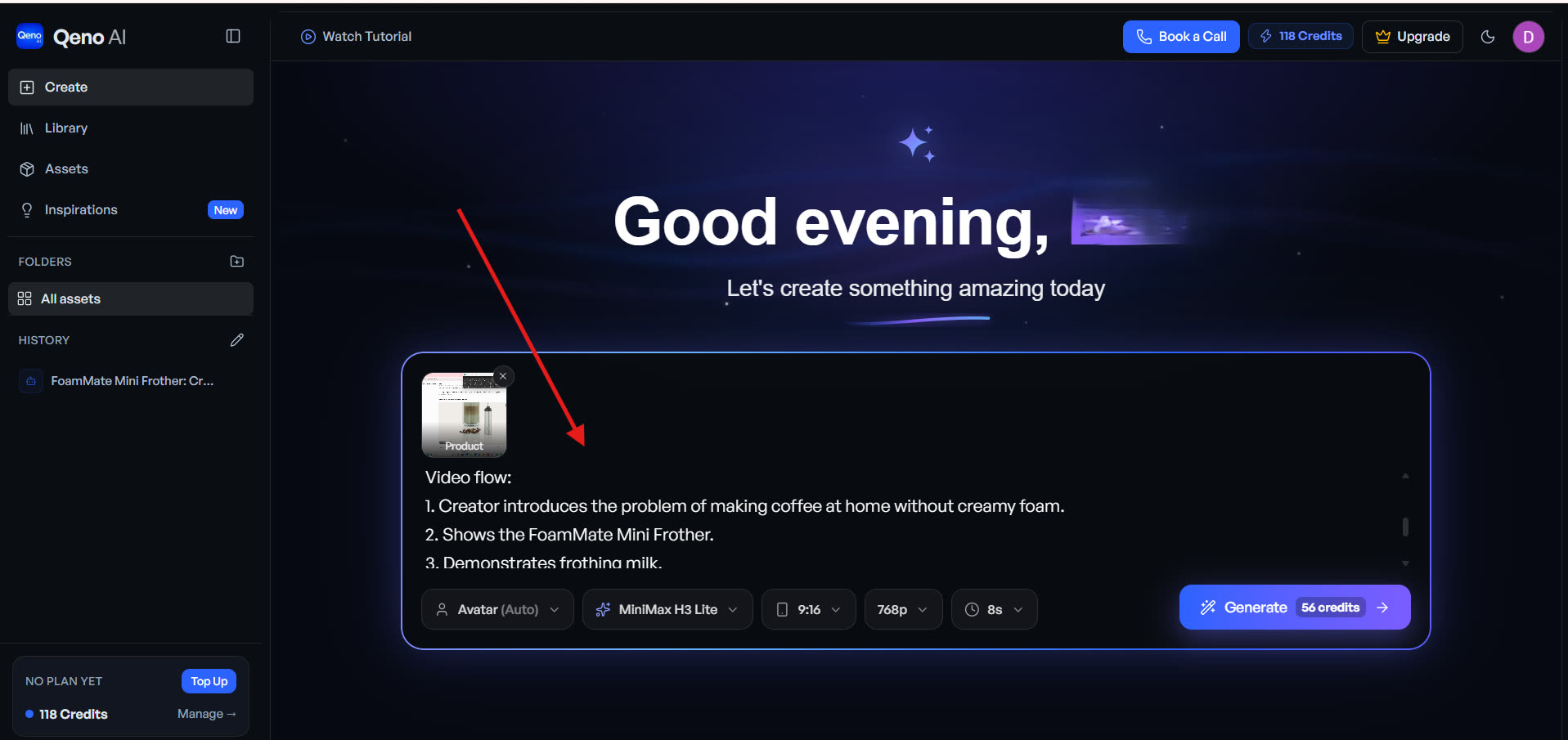
The more clearly you communicate your idea, the easier it is to guide the creative direction of your ad.
Step 3: Choose Your Video Generation Settings
After refining the creative direction, you can configure the video generation settings. The interface provides options for:
- Avatar: Choose the avatar setting, including Avatar (Auto).
- Video model: Select an available generation model, such as MiniMax H3 Lite or MiniMax H3 Highspeed.
- Aspect ratio: Choose the format for your video, such as 9:16 vertical.
- Resolution: Select the available output resolution.
- Duration: Choose the video length.

These settings help you configure the output according to your intended use. For example, a vertical 9:16 video can be suitable for platforms such as Instagram Reels and TikTok.
The credit requirement is displayed before generation, so you can review the cost of your selected configuration.
Step 4: Let the AI Director Refine Your Idea
One of the interesting parts of Qeno AI's workflow is its interactive AI Director. After reviewing your product and creative brief, the AI Director can ask follow-up questions to understand the details of the video you want.
For our example, it identified two possible frother designs and asked us to clarify:
- Which product design should appear: black handle or silver body?
- Where should the creator be filmed: a home kitchen counter, a cozy café-style corner or a bright breakfast nook?
- Which language should the creator speak: English with a light Indian accent, Hinglish or Hindi?
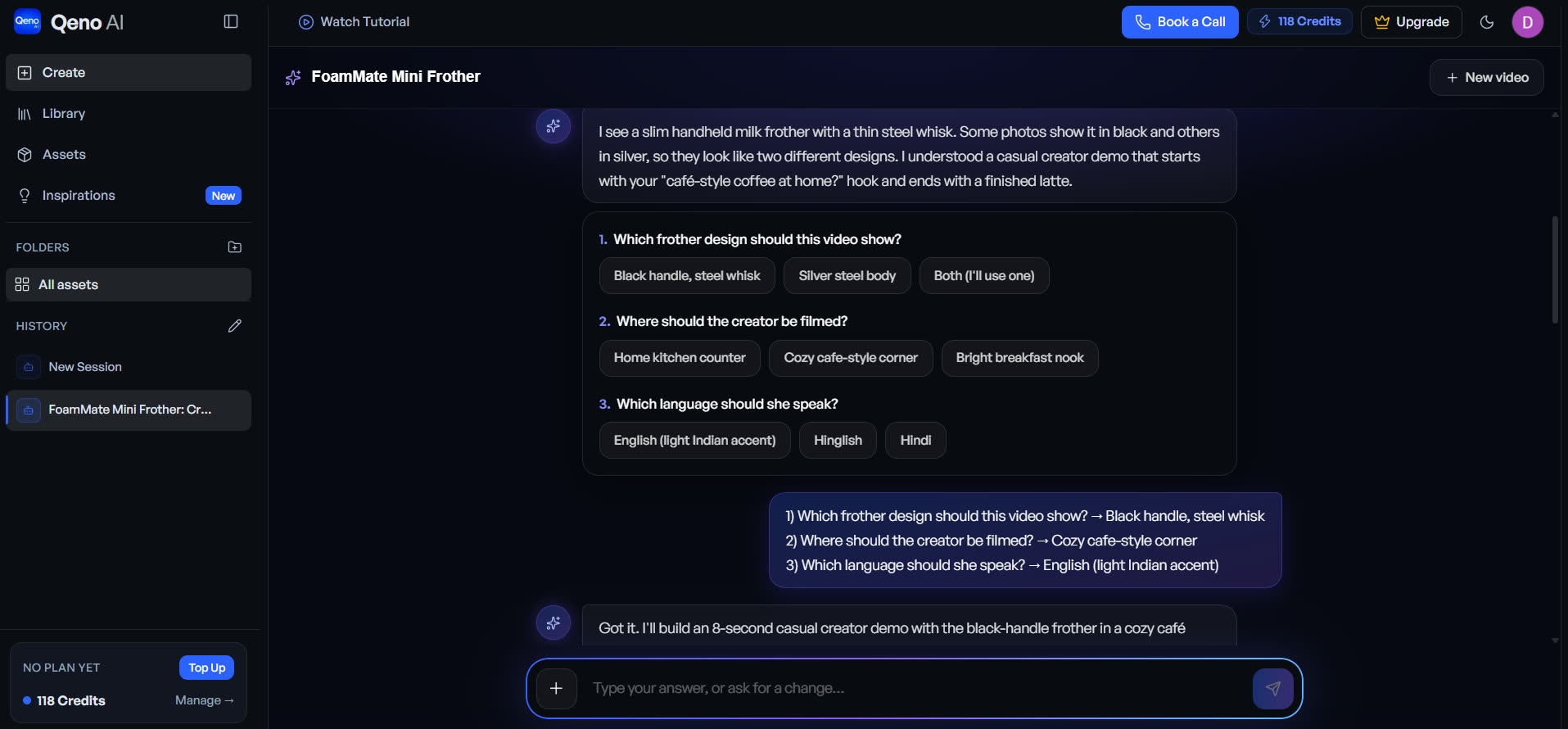
You can select your preferred answers, and they appear in the response box for review before submission. This makes the process more interactive. Instead of having to specify every small detail in your first prompt, you can refine the idea through a conversation with the AI Director.
Step 5: Review Your Video Prompt Before Generating
Before the video is generated, Qeno AI presents a more detailed video specification for review. This includes elements such as:
- The first frame of the video.
- Creator appearance and environment.
- Camera framing and movement instructions.
- Product appearance and placement.
- Video format and duration.
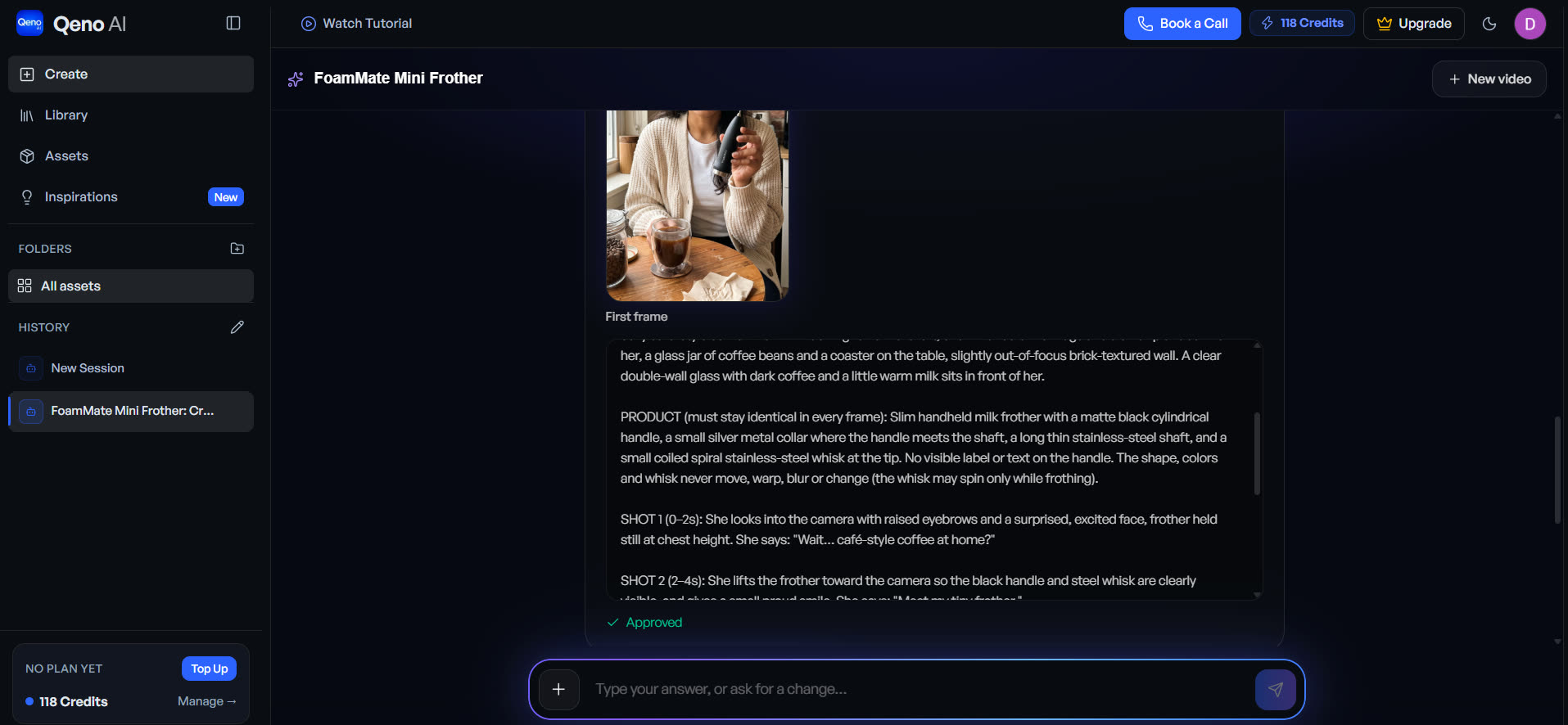
You can review the first frame and use the regenerate option if you want another version. The detailed prompt can also be edited if you want to make changes to the video instructions.
Qeno AI displays the required credits and your remaining balance before you proceed. Once you're happy with the setup, select Approve & Generate.
Step 6: Generate and Download Your UGC Video
After approval, Qeno AI processes your request and generates the video. In our FoamMate Mini Frother example, the result was an eight-second vertical creator-style video featuring a creator in a cozy café-style setting, holding a finished coffee.
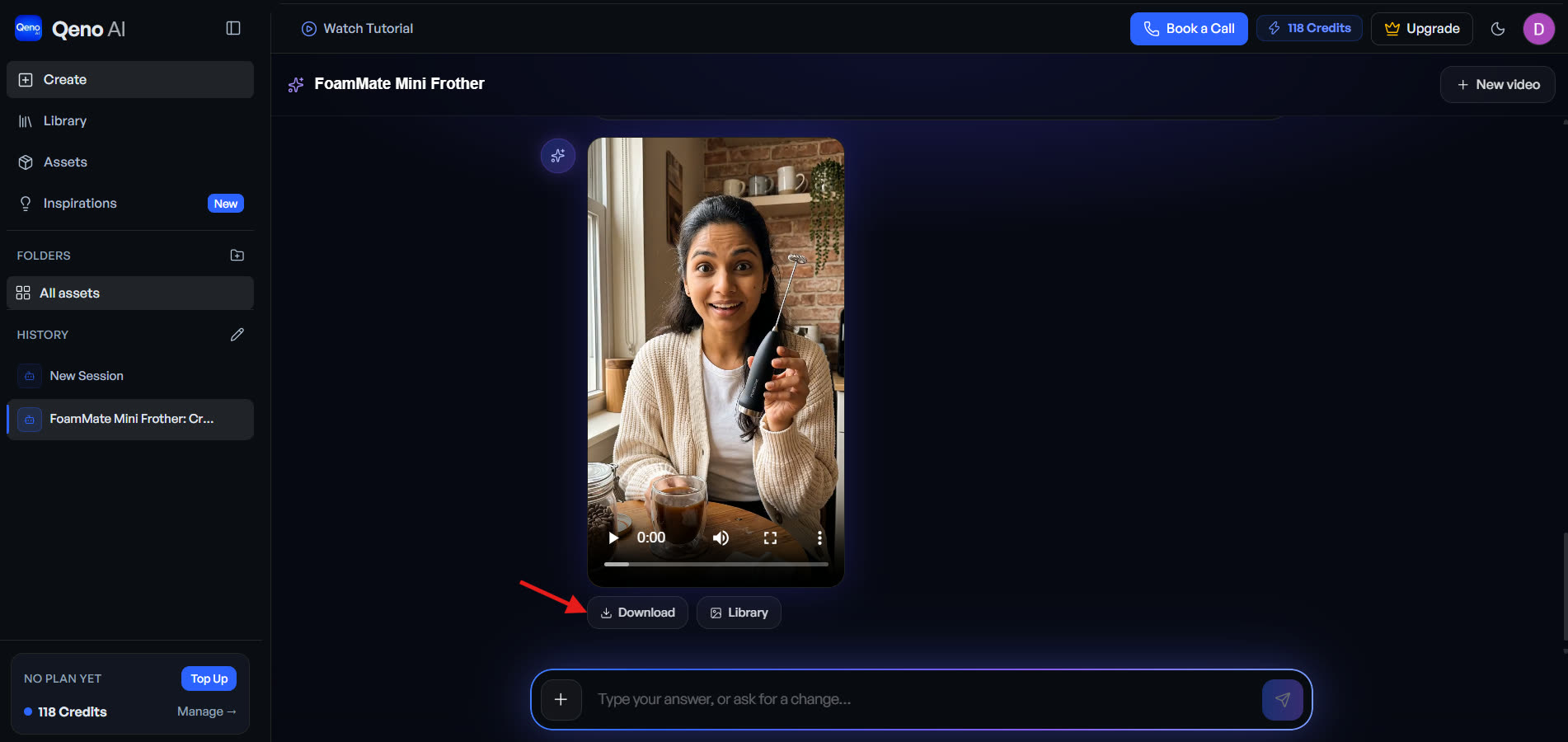
Once the video is ready, you can preview the result and choose to:
- Download the generated video.
- Save it to your Qeno AI Library.
And that's it. Your product idea has been turned into a creator-style video ad without arranging a camera shoot, booking a physical actor or setting up a studio.
Who Can Benefit from Qeno AI?
Qeno AI can be useful for different types of businesses and marketing teams.
- E-commerce brands: Create product-focused video ads that show how products look and fit into everyday use.
- Small businesses and startups: Explore creator-style advertising without having to organise a traditional production setup for every video.
- Digital marketers: Develop video ad concepts and experiment with creative directions for campaigns.
- Performance marketers: Create video assets to explore different advertising approaches and test creative ideas.
- Marketing agencies: Use an AI-powered workflow to develop creator-style ad content for different products and brands.
Create UGC Video Ads Without the Production Hassle
Creating video advertisements doesn't always have to begin with a camera, a creator booking or a studio.
With Qeno AI, the process starts with your product and your idea. You can add product information, describe the ad you want, refine the creative direction with the AI Director, configure your video settings and generate your video.
It brings multiple steps of the creative process into one guided workflow.
Whether you're an e-commerce brand exploring video advertising or a marketer looking for a simpler way to develop UGC-style creatives, Qeno AI offers a different way to approach video ad production.
Ready to turn your product ideas into UGC video ads? Explore Qeno AI and start creating.
Frequently Asked Questions
1. Can I create UGC video ads without recording myself?
Yes. Qeno AI offers an AI-powered creator-style video generation workflow, so you don't need to personally record the video.
2. Do I need a physical product to get started?
You can provide product information and product media through the manual-entry workflow or import a supported product URL. The workflow shown in Qeno AI uses product details and media as inputs.
3. Can I import a product directly from an online store?
Yes. The product import screen displays support for Amazon, eBay, Shopify and Walmart product links.
4. Can I choose the language and setting for my UGC video?
The AI Director can ask you to select preferences such as the filming environment and spoken language. The options available depend on the creation workflow.
5. Can I choose the video format and duration?
Yes. The Create interface provides settings for aspect ratio, resolution and video duration.
6. Can I download my generated UGC video?
Yes. Once the video is generated, you can download it or save it to your Qeno AI Library.
7. Do I need video production experience to use Qeno AI?
The guided workflow is designed to help users move from product information and a creative idea to video generation without needing to manage a traditional filming setup.